Everything from blocking a flat to the last receipt.
Six parts, one system. Each screen below is the product itself, recorded on sample data.

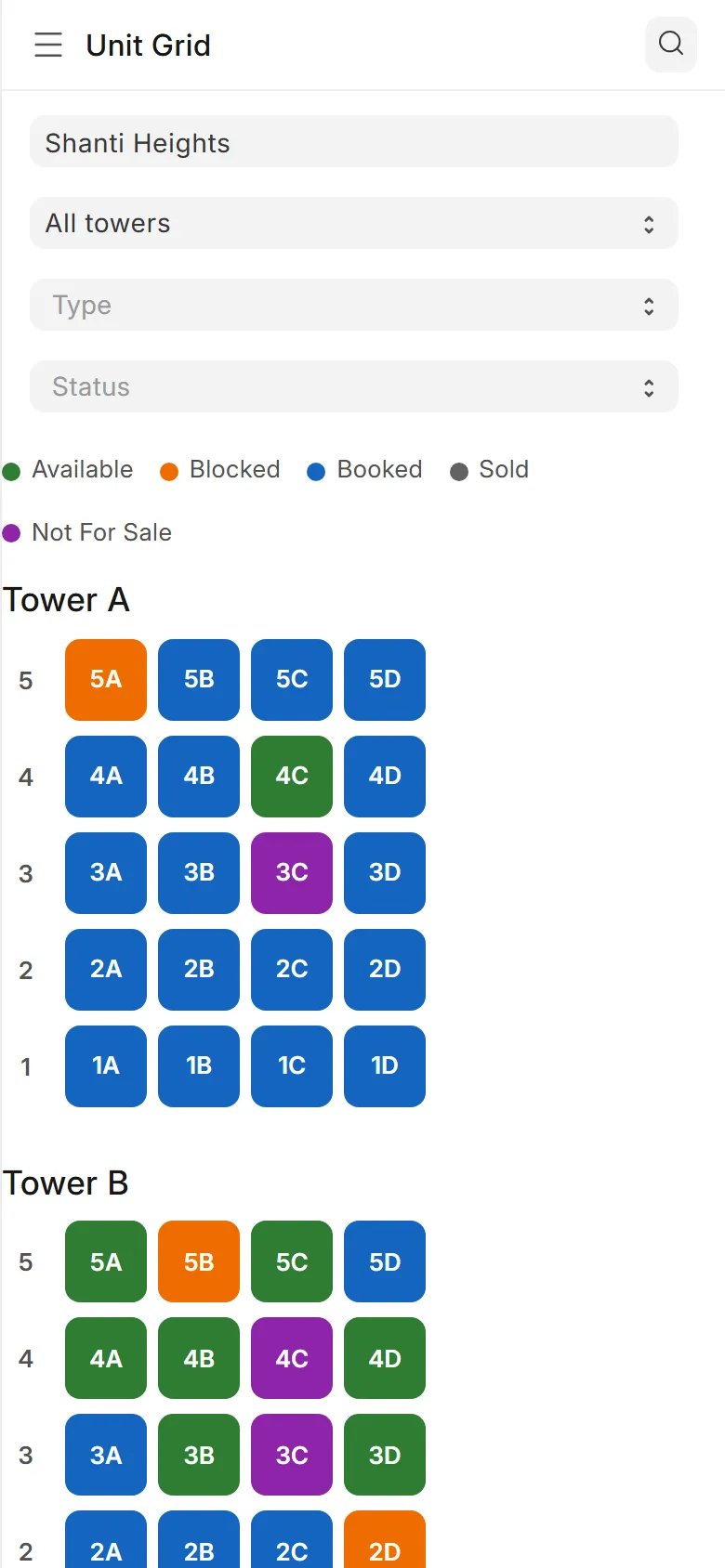
Every flat, in every tower, in its true state.
Set up the project once. The chart then keeps itself current as flats are blocked, booked and sold.
- Towers and flats
- Generate a tower's flats floor by floor in one go, then adjust any flat by hand.
- Three areas, one basis
- Each flat carries its carpet, built-up and super built-up area. Each project prices on the basis you choose, or as a lump sum per flat.
- Blocks with an expiry
- A block names who blocked the flat and until when. Your settings decide whether a lapsed block releases on its own.
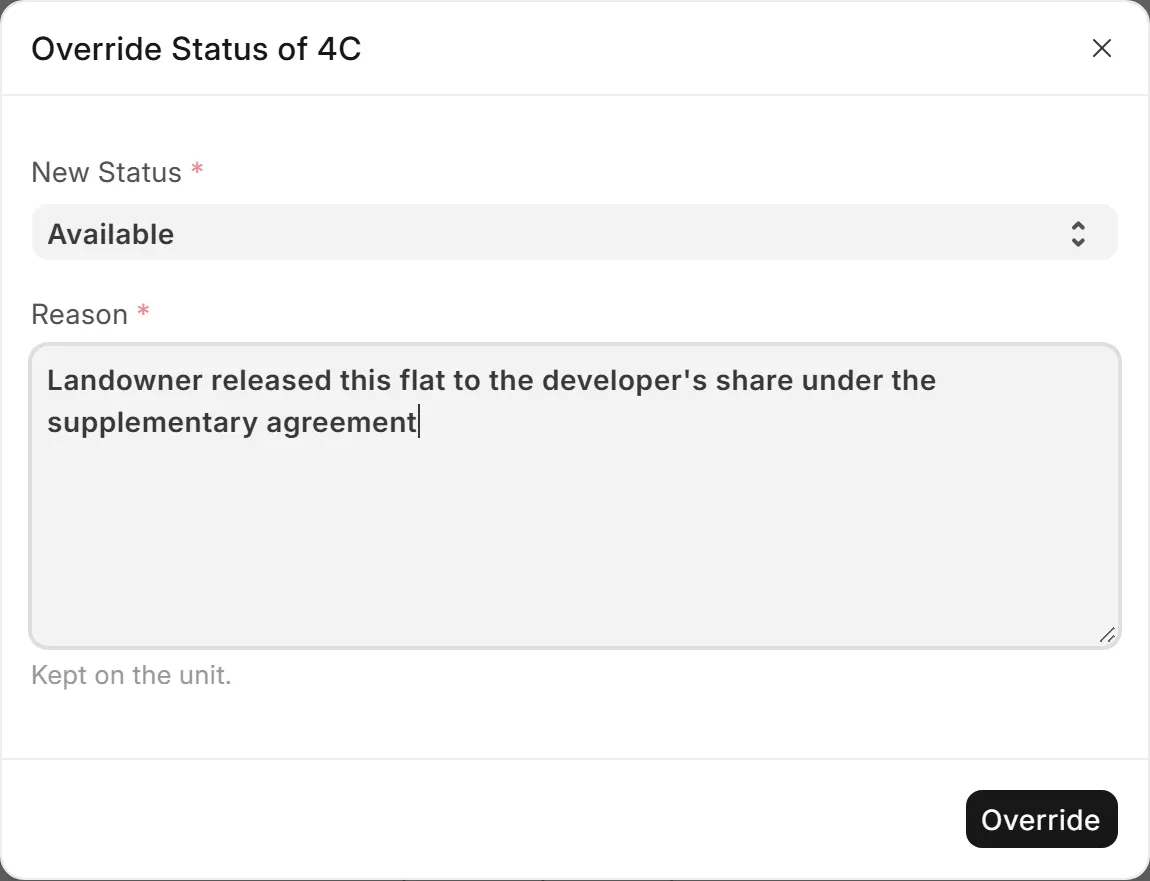
- Landowner flats
- They start as Not For Sale. Only the owner releases one, and the reason is kept on the flat.
- Your flat list
- Bring your flats as a spreadsheet. They come in through the import template.
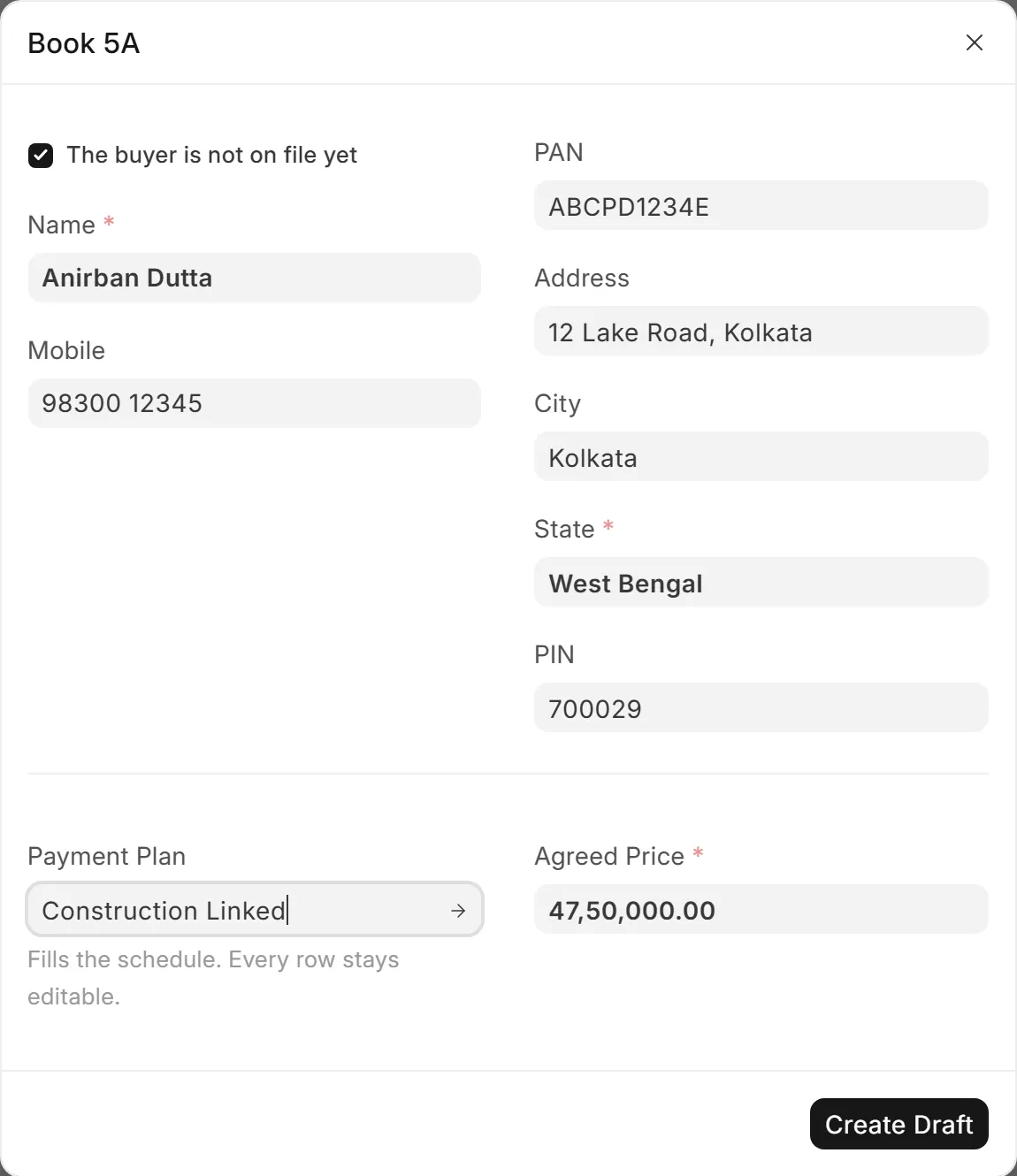
A booking and its whole schedule, in one sitting.
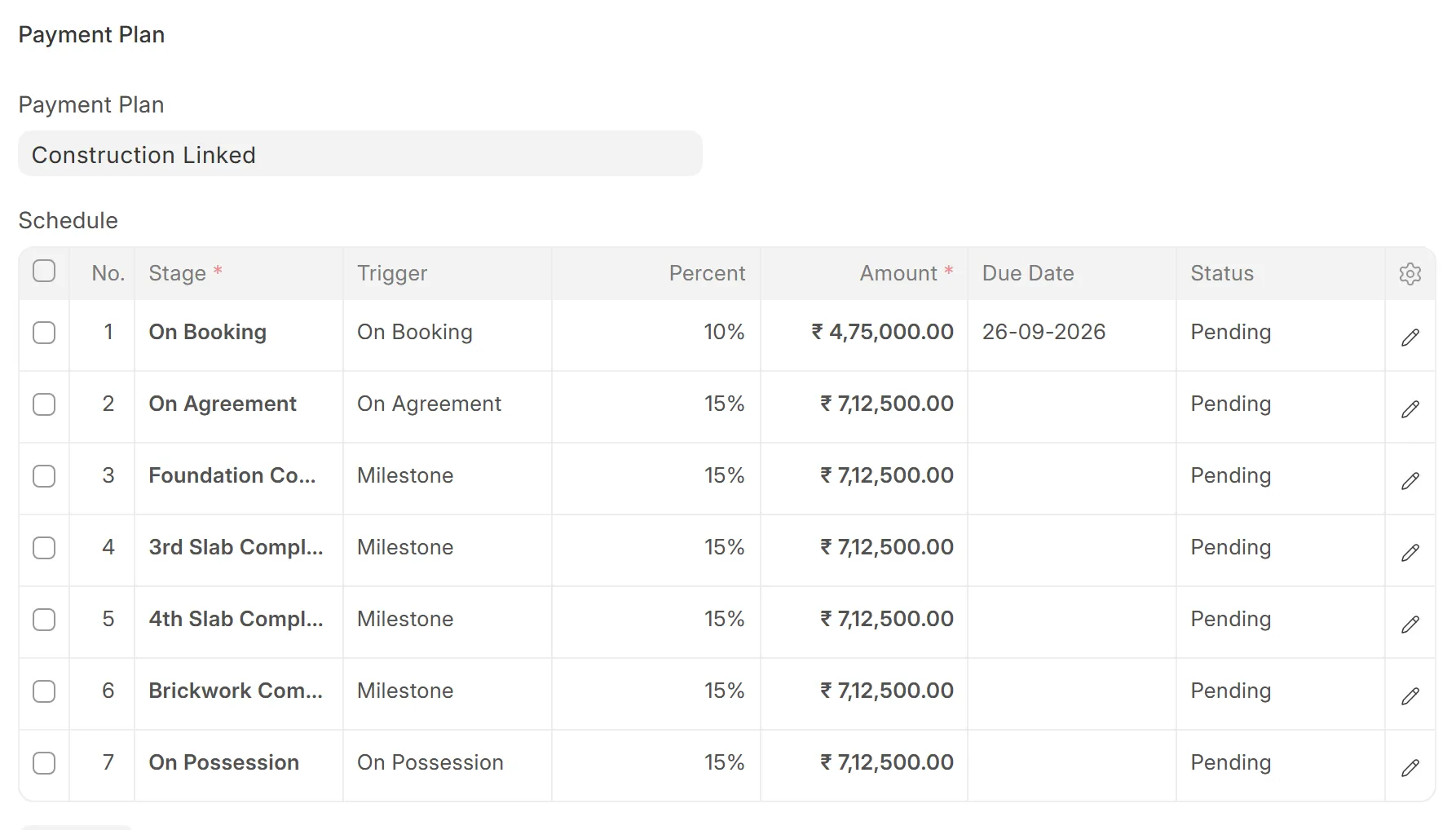
Book from the chart, add the buyers, pick a payment plan, and the schedule is worked out to the paisa.
- New buyer, no retyping
- Create the buyer, their contact and their address from the booking itself.
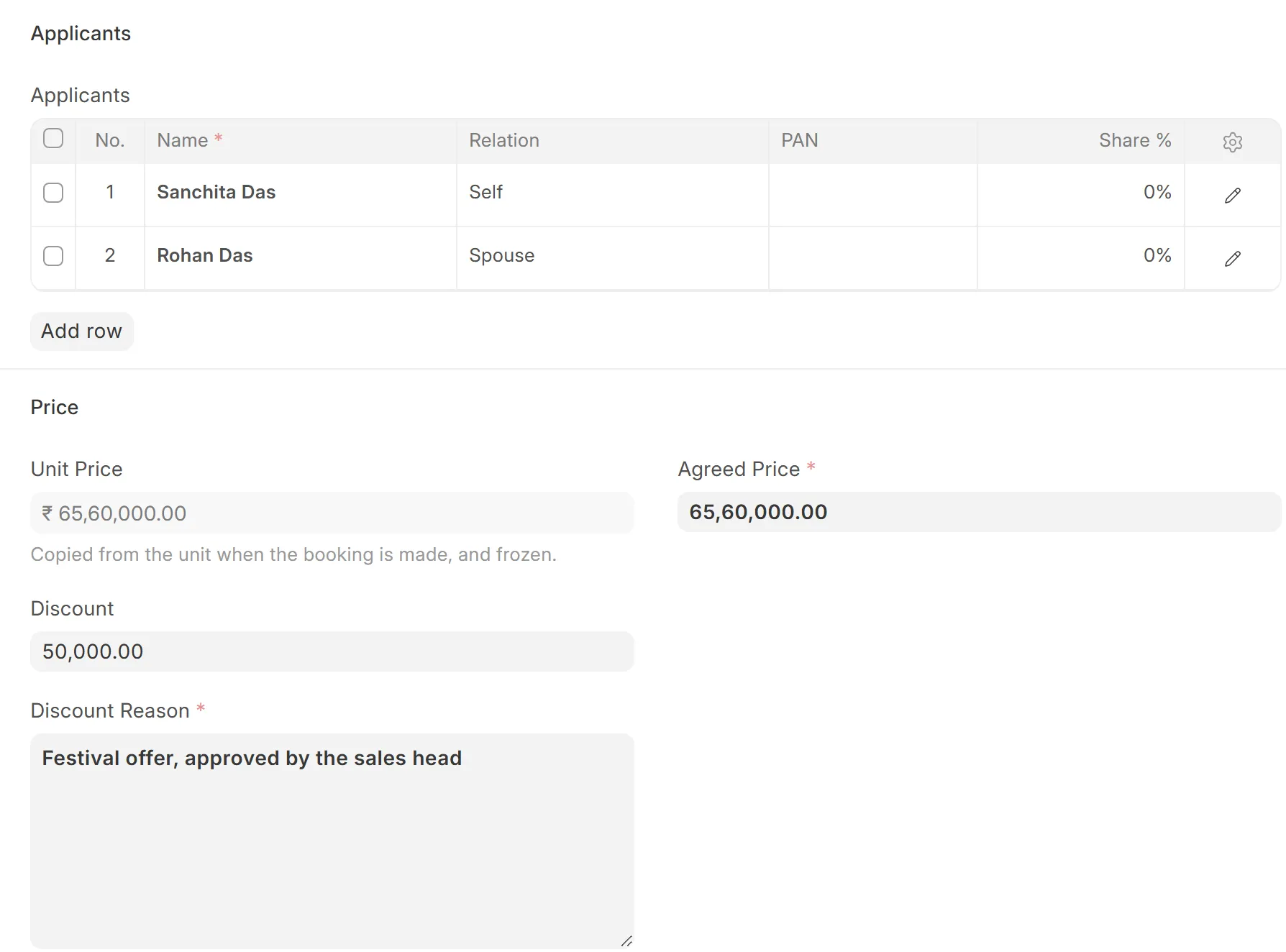
- Joint applicants
- Add every applicant with their relation and share. The letters list them all.
- Payment plans
- Keep your plans as stages that total 100 percent: on booking, on agreement, each slab, on possession.
- An editable schedule
- Every row stays editable until a demand exists for it. The rows add up to the agreed price, with any rounding on the last row.
- Below the floor price
- A price below the flat's minimum waits for a manager's approval, with the reason typed on the booking.
- TDS, ticked for you
- Above the threshold in your settings, the booking marks the buyer as deducting TDS. You can untick it.
- Allotment letter
- Print it on your letterhead, with every applicant and the full schedule.
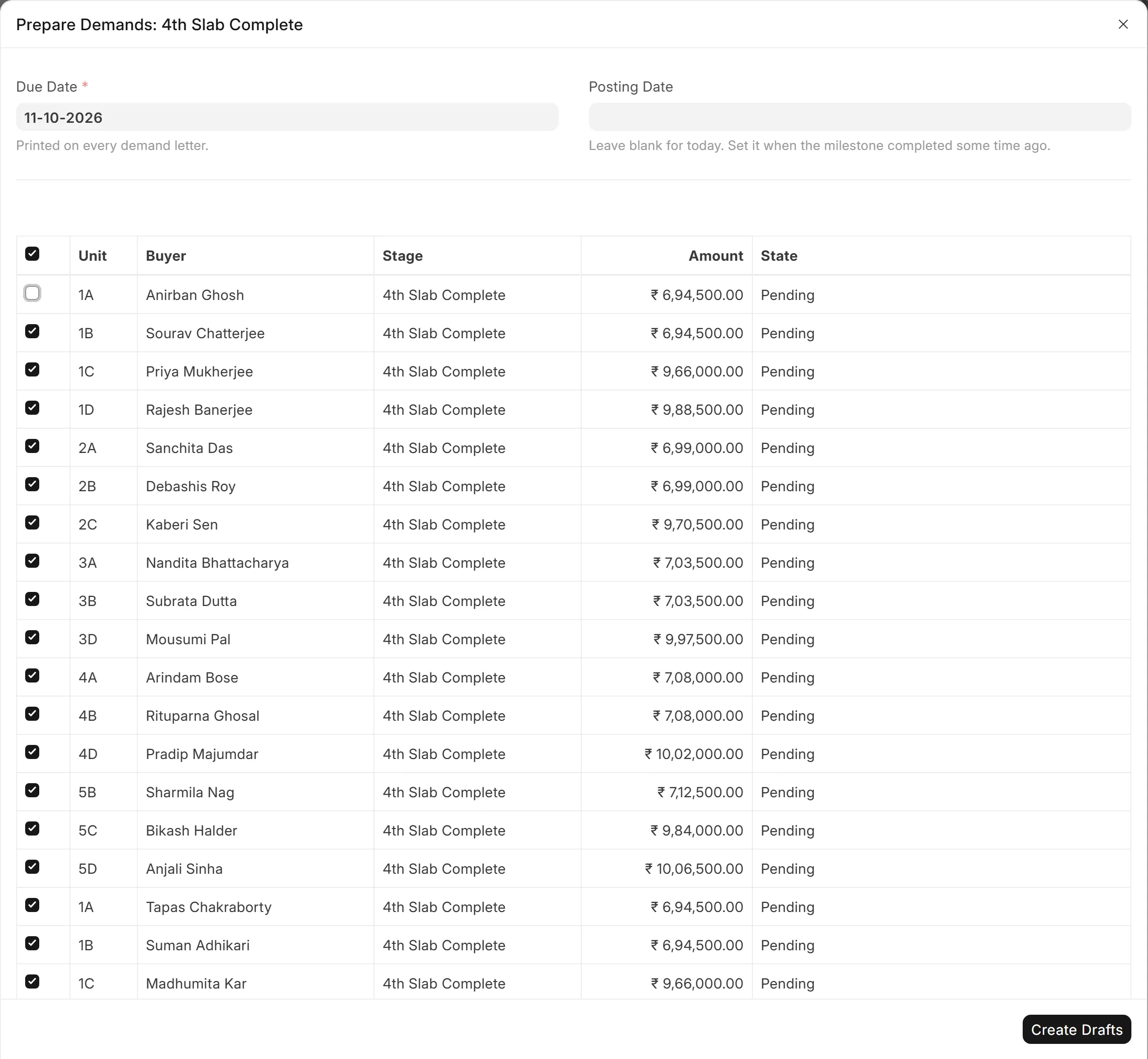
When a stage is done, the demands are ready to check.
Milestones live on the project. Completing one prepares every demand it triggers, as drafts.
- Milestones
- Each construction stage is a milestone on the project. Mark it complete when the site confirms it.
- One review list
- Every buyer whose stage fell due, with the amount from their own schedule. Untick anyone in dispute.
- Drafts first
- Each demand stays a draft until a person checks and submits it.
- No double demands
- A schedule row carries at most one live demand. Running the list again creates nothing new.
- The demand letter
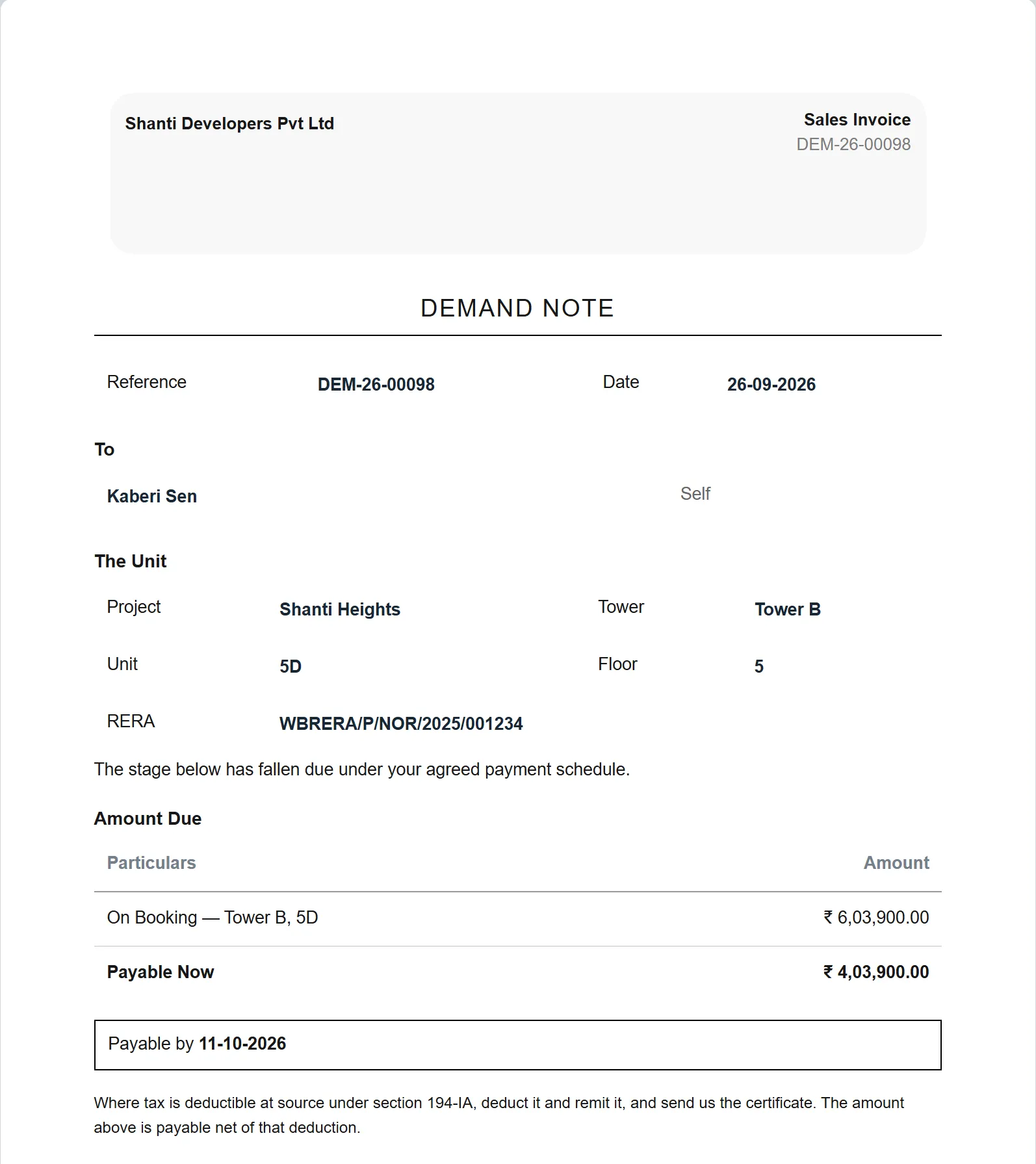
- The stage, the amount and the GST, on your letterhead, addressed to every applicant.
- Cancel and reopen
- Cancel a demand and its schedule row goes back to Pending.
Every rupee lands against the right instalment.
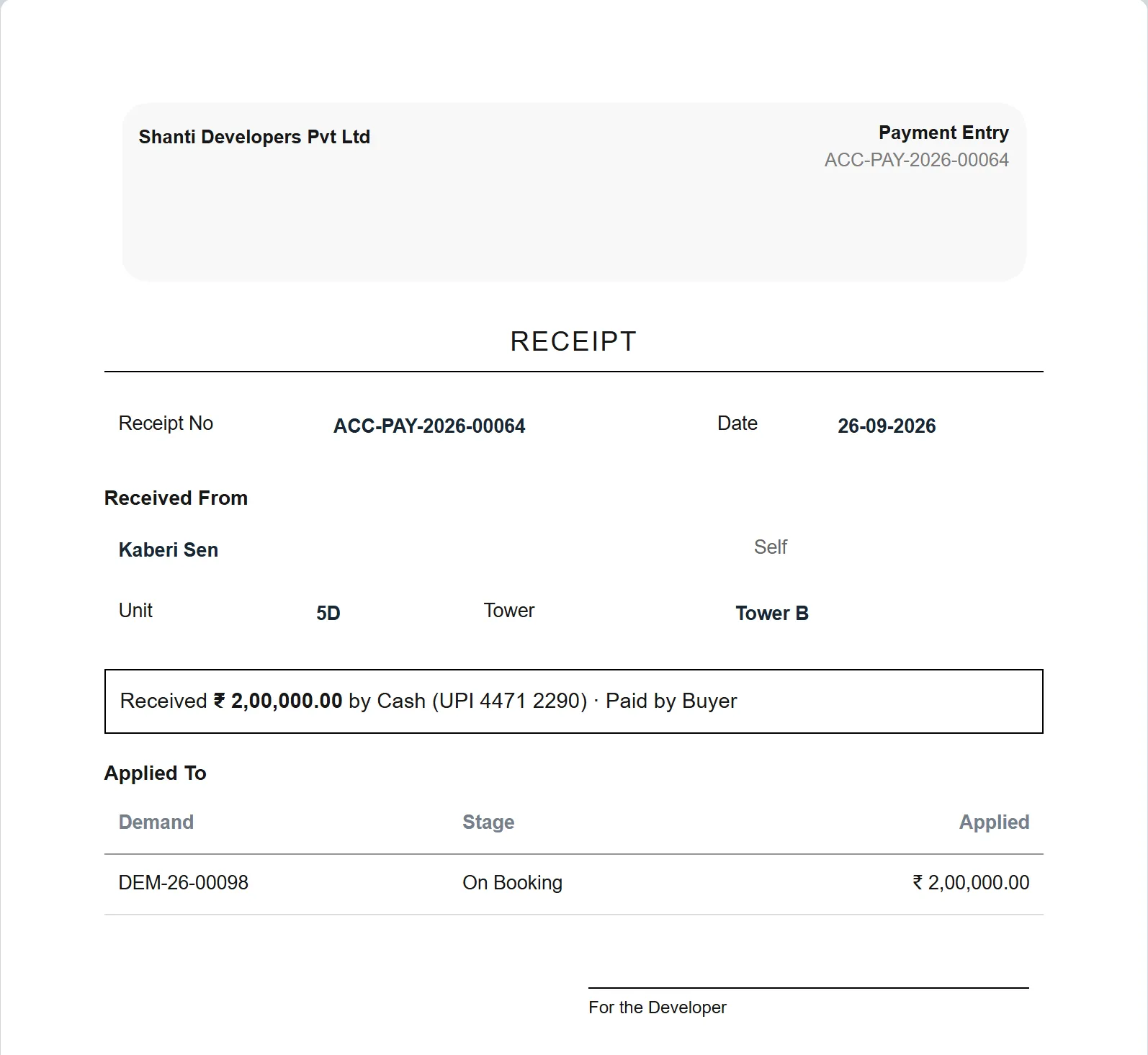
Receipts are recorded against the demand they settle, however the buyer pays.
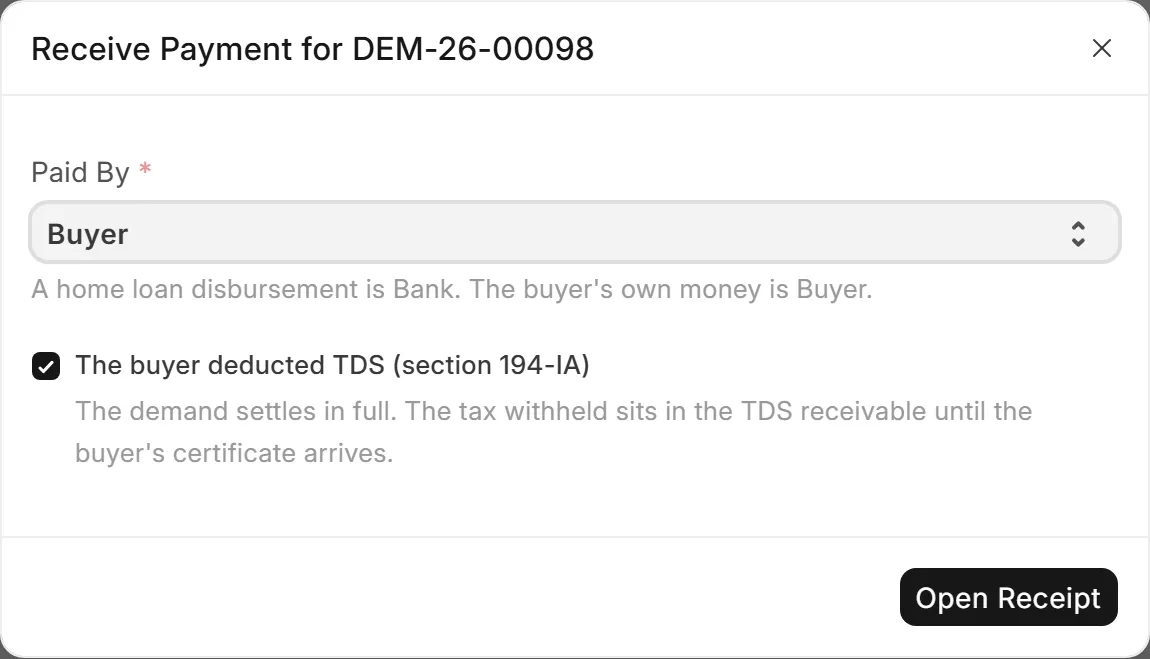
- Bank and buyer
- Record the home-loan disbursement and the buyer's own money as separate receipts.
- The buyer's TDS
- If the buyer deducted TDS under section 194-IA, the receipt carries the deduction. It waits in TDS receivable until the certificate arrives.
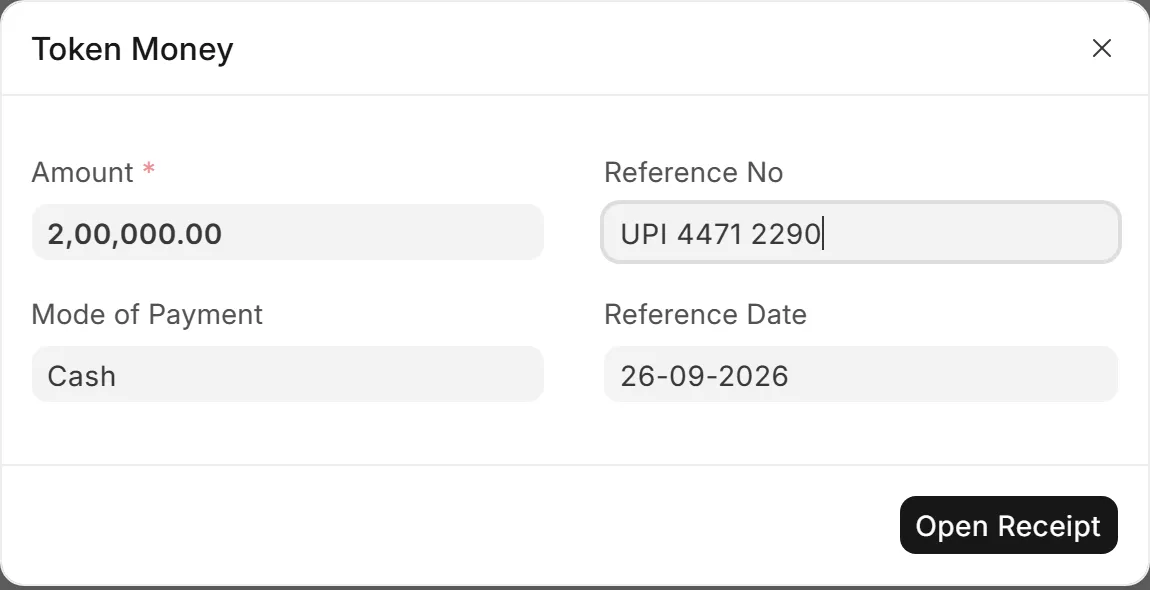
- Token money
- Take token money before the first demand. It is held as an advance and applied to the first demand.
- Status follows money
- Each row reads Pending, Demanded or Paid from its demand. Waiving an instalment needs a manager and a reason.
- Receipts
- Print the buyer's receipt on your letterhead as soon as the money is recorded.
Standard books, kept where the bookings are.
Your accountant works in full double-entry accounting, with GST, in the same system as the sales team.
- Every demand posted
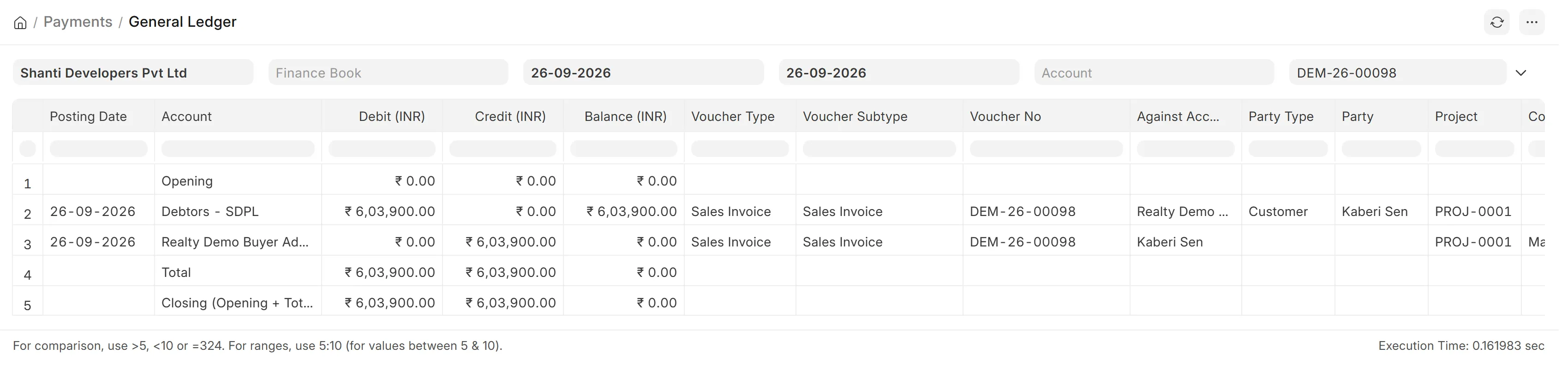
- Each demand is a tax invoice and each receipt is posted to the general ledger.
- The usual reports
- General ledger, trial balance, receivables by age, and the rest of standard accounting.
- Realty reports
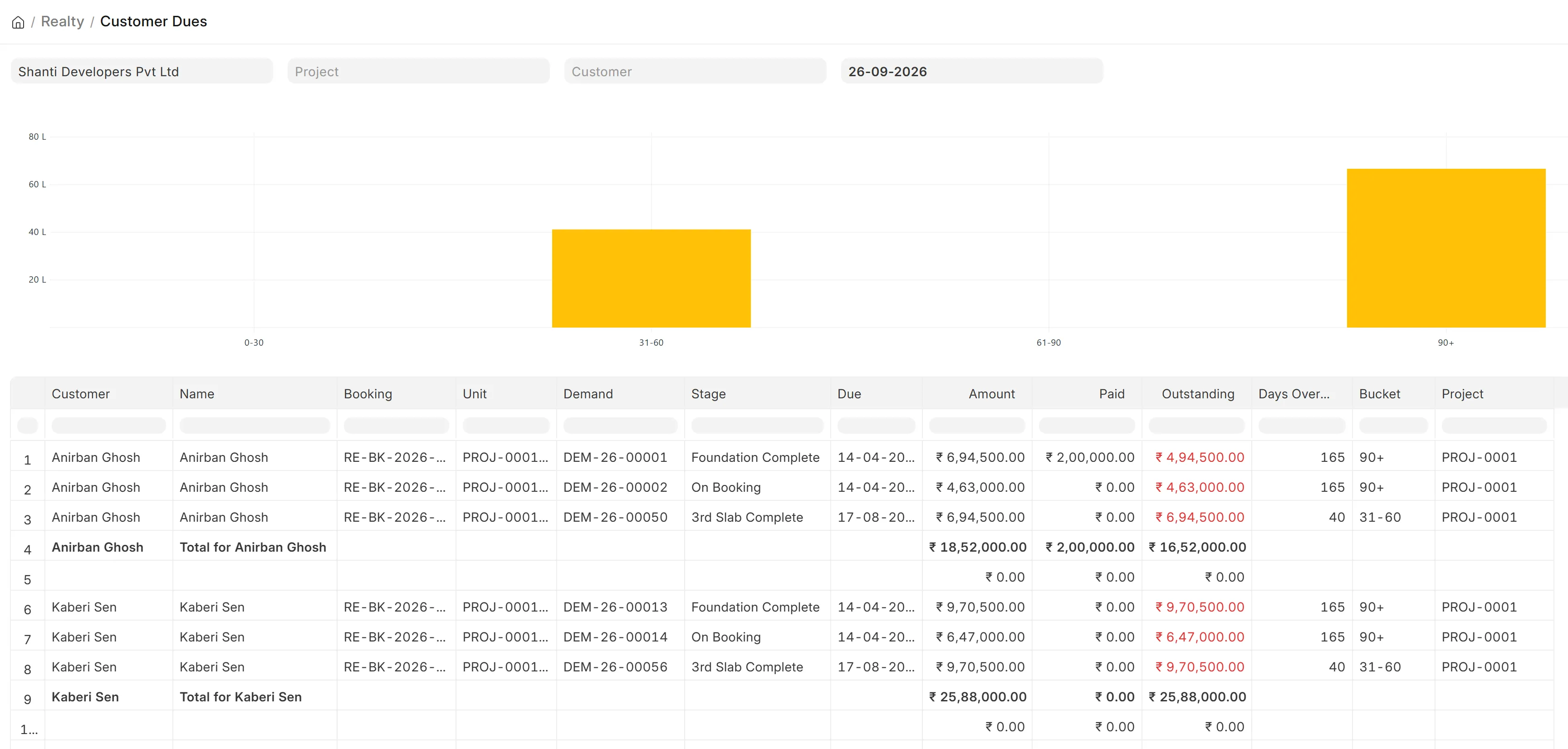
- Unit inventory, booking register, customer dues, and a collection forecast by month.
- Set with your CA
- GST templates, the TDS threshold and the accounts each entry posts to are settings, confirmed with your CA before the first demand.
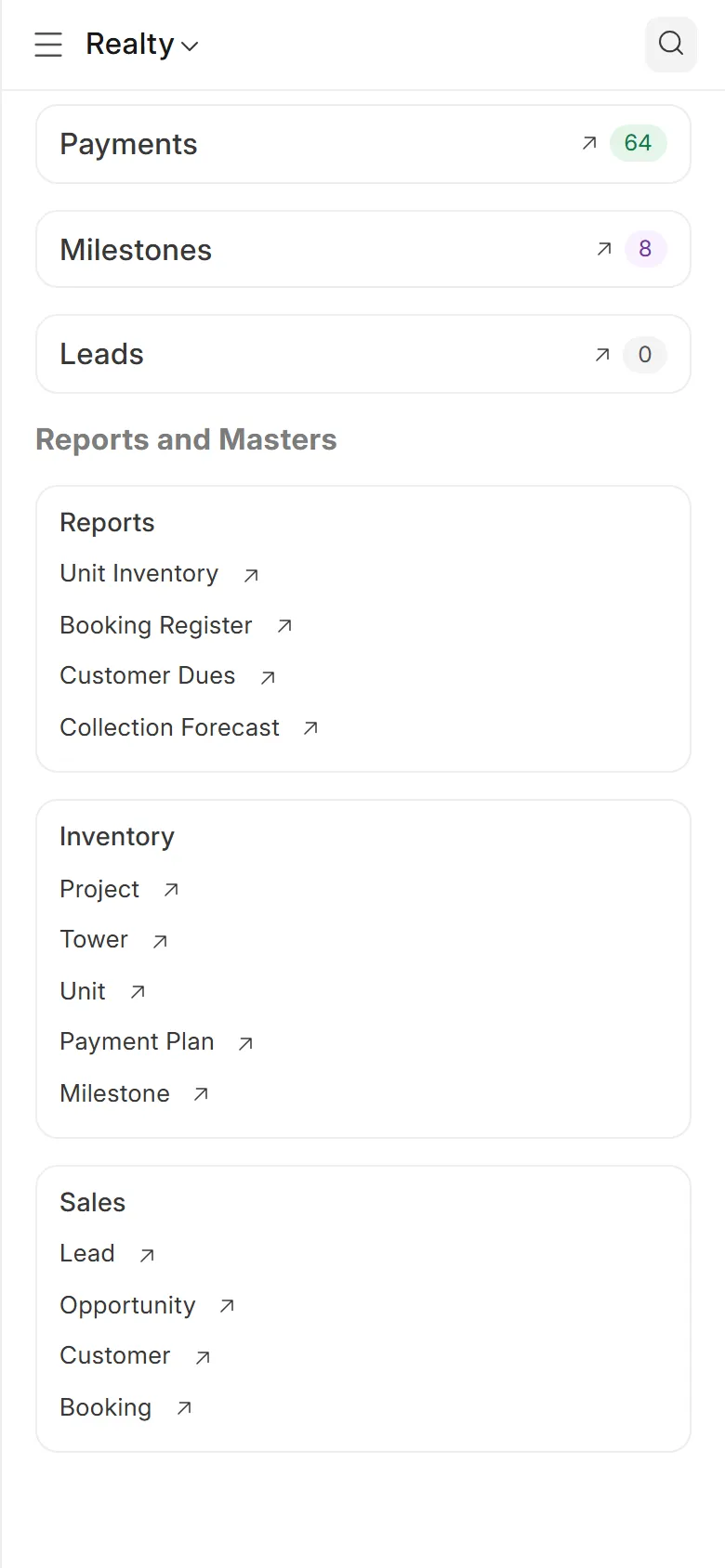
What the owner needs, on the phone.
The state of the project, without opening a single form.
- Inventory
- Flats available, blocked, booked and sold, and the chart itself.
- This month
- The bookings made this month.
- Dues
- Customer dues and the collection forecast, one tap away.
- A role for each person
- Sales, accounts, manager and owner each get a role with its own screens.
- Overrides with a reason
- Only the owner changes a flat's status by hand, and the reason is kept on the flat.
See it run on a live demo.
Pick a time. We walk you through the software on a sample project, from the chart to the ledger, and answer your accountant's questions as we go.
You pick a time
Three short steps: a time, your office, your number.
We call to confirm
One call to fix the time and hear how you work today.
You see the software
The chart, a booking, a stage's demands and the books, on sample data.
[WhatsApp number]
[Phone number]
[Email address]